Correcting IP Conflicts on Belkin N600 Home Office Router
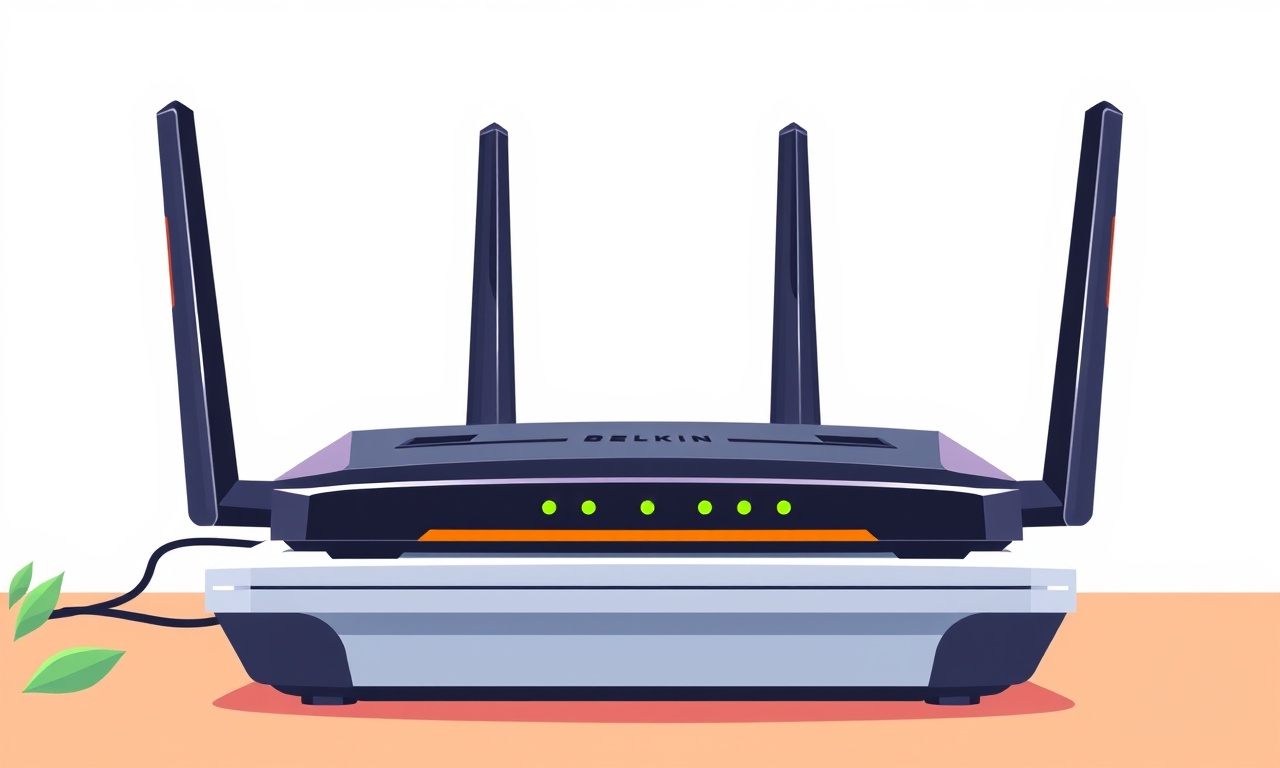
IP conflicts arise when two devices on the same network claim the same address. On a Belkin N600 Home Office Router, this can manifest as slow browsing, intermittent Wi‑Fi drops, or the inability to connect new devices. Below is a comprehensive, step‑by‑step guide that will help you identify, diagnose, and permanently eliminate IP conflicts on your router.
Why IP Conflicts Matter
An IP address functions like a street address in a neighborhood—it tells every device where to send and receive data. When two devices share the same address, the network can no longer guarantee reliable communication. The symptoms include:
- Slow or erratic connection to the Internet
- Devices that occasionally lose connectivity or “disconnect” after a few minutes
- Inability to add new devices (the router may report “IP address in use”)
Address conflicts also expose the network to security risks, because the rogue device can spoof the legitimate one. Correcting them ensures a stable, secure home office environment.
Spotting the Symptom
Before you dive into configuration, confirm that an IP conflict exists:
- Network Explorer Tools – On Windows, use the built‑in “Network” tab in File Explorer. On macOS, open Finder > Go > Network.
- Ping Test – In a command prompt or terminal, ping the router’s gateway address (usually 192.168.0.1 or 192.168.1.1).
- Router Logs – Log into the Belkin N600 admin interface (typically http://192.168.0.1). Under the “Status” or “System Log” section, look for duplicate IP notices.
- Device Behavior – If you notice that one device appears and then disappears or vice versa, a conflict is likely.
If you see any of the above signs, proceed to the troubleshooting steps.
Step 1 – Identify the Conflicting Devices
The first concrete action is to discover which two devices are fighting for the same IP.
1. Access the Router’s Admin Page
Open a web browser and type the router’s IP address (default 192.168.0.1). Log in using your admin credentials.
2. Navigate to the DHCP Client List
Look for a section labeled “LAN Status,” “DHCP Client List,” or “Attached Devices.” This page lists every device with its MAC address and assigned IP.
3. Note Duplicate Entries
If two devices share an IP, the list will show the same address twice. Record their MAC addresses and any device names.
4. Verify Device Ownership
Sometimes, a device may appear multiple times if it has both a wired and wireless connection. Make sure you are not looking at a single device twice.
Step 2 – Review DHCP Settings
Your Belkin N600 automatically assigns IP addresses through DHCP. If the DHCP range is too small or overlaps with a statically set address, conflicts will happen.
1. Open the DHCP Settings
In the router interface, find “DHCP Server” or “LAN Setup.”
2. Check the IP Range
Typical ranges are 192.168.0.2 to 192.168.0.100 or 192.168.1.2 to 192.168.1.100. Ensure that the range is larger than the number of devices you expect to connect.
3. Ensure the “Gateway” Address Is Excluded
The router’s own address (e.g., 192.168.0.1) should not fall inside the DHCP pool. Verify it is excluded.
4. Confirm “Lease Time”
A short lease time can force devices to renegotiate IPs more often. While not a direct cause of conflicts, a generous lease (e.g., 12 hours) provides stability.
If you discover that your DHCP range is too small or overlaps with a manually set address, adjust it accordingly. After saving, the router will reload its settings.
Step 3 – Restart the Router
A simple reboot can clear temporary reservations and reset the DHCP table.
- Press the power button on the router for five seconds or use the “Reboot” option in the admin panel.
- Wait until all lights return to their normal state.
- Re‑connect your devices and check the DHCP Client List again.
- If the conflict persists, move to the next step.
Step 4 – Assign a Static IP to One Device
When two devices keep cycling through the same address, set one device to a static IP outside the DHCP pool.
1. Choose an Address
Pick an address that does not conflict with the DHCP range, e.g., 192.168.0.200.
2. On the Device (Windows)
- Go to Settings > Network & Internet > Wi‑Fi > Hardware properties.
- Scroll to “IP assignment” and click “Edit.”
- Switch to “Manual,” enable IPv4, and enter the chosen IP, subnet mask (255.255.255.0), gateway (192.168.0.1), and DNS (your ISP’s DNS or Google 8.8.8.8).
3. On the Device (macOS)
- Open System Settings > Network.
- Select the interface, click “Advanced,” go to “TCP/IP,” and set “Configure IPv4” to “Manually.”
- Input the static IP information.
4. Verify Connectivity
Ping the router from the static device. If successful, the conflict should be resolved.
Step 5 – Update Firmware
Outdated firmware can contain bugs that cause IP allocation errors.
- Visit Belkin’s support site and download the latest firmware for the N600.
- Log into the router interface and navigate to “Firmware Update.”
- Upload the file and let the router restart.
- After updating, re‑check the DHCP client list to ensure no duplicates.
Step 6 – Use MAC Address Filtering (Optional)
If the conflict arises from a rogue device repeatedly claiming the same IP, MAC filtering can help.
- In the router interface, locate “Access Control” or “MAC Filtering.”
- Add the MAC addresses of legitimate devices to an allow list.
- Deny or block any unknown MAC addresses.
This step is more advanced and should be used only if you suspect unauthorized devices.
Step 7 – Segment the Network (VLAN or Guest Wi‑Fi)
For larger home offices or environments with many devices, segmenting the network can isolate potential conflicts.
1. Guest Network
Most routers provide a “Guest Wi‑Fi” option. Enable it and set a different subnet, e.g., 192.168.2.0/24.
2. VLAN Setup (If Supported)
If your router supports VLANs, create a separate VLAN for high‑traffic devices (printers, cameras). This keeps their IP range isolated.
After segmentation, restart the router and monitor for any remaining conflicts.
Step 8 – Troubleshoot Residual Conflicts
If conflicts still occur after following the above steps:
- Check for Duplicate MACs – Some IoT devices or virtual machines may duplicate MAC addresses. Ensure each device has a unique hardware MAC.
- Inspect Connected Devices – Turn off devices one by one, then check the DHCP list to see when the conflict disappears.
- Reset the Router – As a last resort, perform a factory reset. Back up your settings first, then use the reset button (hold for 10 seconds). Re‑configure your network and DHCP range.
Best Practices to Prevent Future Conflicts
| Practice | Why It Helps |
|---|---|
| Keep the DHCP pool larger than your device count | Leaves room for new connections without overlap |
| Avoid assigning static IPs inside the DHCP range | Prevents accidental overlaps |
| Regularly update firmware | Fixes bugs that may impact DHCP |
| Use a network monitoring tool | Quickly flags duplicate IPs |
| Label devices physically | Reduces accidental misconfiguration |
Recap
- Verify the conflict with logs or network tools.
- Identify the devices involved via the DHCP client list.
- Adjust the DHCP range and confirm it excludes the router’s own address.
- Reboot the router.
- Assign a static IP outside the DHCP pool to one device.
- Update firmware, and optionally apply MAC filtering or network segmentation.
- Troubleshoot any remaining issues by inspecting devices and, if necessary, resetting the router.
By following these steps, your Belkin N600 Home Office Router should operate without IP conflicts, ensuring a stable and secure connection for all of your work‑related devices.
Enjoy a smoother, conflict‑free network for your home office.
Discussion (10)
Join the Discussion
Your comment has been submitted for moderation.
Random Posts

Addressing Apple iPhone 14 Pro Max Battery Drain During Gaming Sessions
Learn why iPhone 14 Pro Max batteries drain during gaming, how to diagnose the issue, and practical tweaks to keep you playing longer with less power loss.
5 months ago
Curing iPhone 14 Plus Charging Port Wear After Daily Fast Charge Cycles
Fast charging can loosen your iPhone 14 Plus port. Learn to spot slow charging and loose cables, then fix it with simple home tricks or long, term prevention.
6 months ago

Xiaomi Mi SmartGlasses 3 Eye Tracking Error Fix
Fix the eye, tracking issue on Mi SmartGlasses 3 with this step, by, step guide to diagnose, clear errors, and restore functionality without repair.
1 year ago

Overcoming Sony X900H Color Saturation Drift During HDR Playback
Discover how to spot and fix color saturation drift on your Sony X900H during HDR playback, tune settings, correct HDR metadata, and keep your scenes vivid and natural.
4 months ago

Remediating Signal Dropout on Bowers & Wilkins PX8 Noise Cancelling Headphones
Discover why the Bowers & Wilkins PX8 may drop sound and how to fix it by tackling interference, low battery, outdated firmware, obstacles and Bluetooth settings for uninterrupted audio
1 week ago
Latest Posts

Fixing the Eufy RoboVac 15C Battery Drain Post Firmware Update
Fix the Eufy RoboVac 15C battery drain after firmware update with our quick guide: understand the changes, identify the cause, and follow step by step fixes to restore full runtime.
5 days ago

Solve Reolink Argus 3 Battery Drain When Using PIR Motion Sensor
Learn why the Argus 3 battery drains fast with the PIR sensor on and follow simple steps to fix it, extend runtime, and keep your camera ready without sacrificing motion detection.
5 days ago

Resolving Sound Distortion on Beats Studio3 Wireless Headphones
Learn how to pinpoint and fix common distortion in Beats Studio3 headphones from source issues to Bluetooth glitches so you can enjoy clear audio again.
6 days ago