Fixing Firmware Update Errors on Samsung Galaxy Watch Active 2
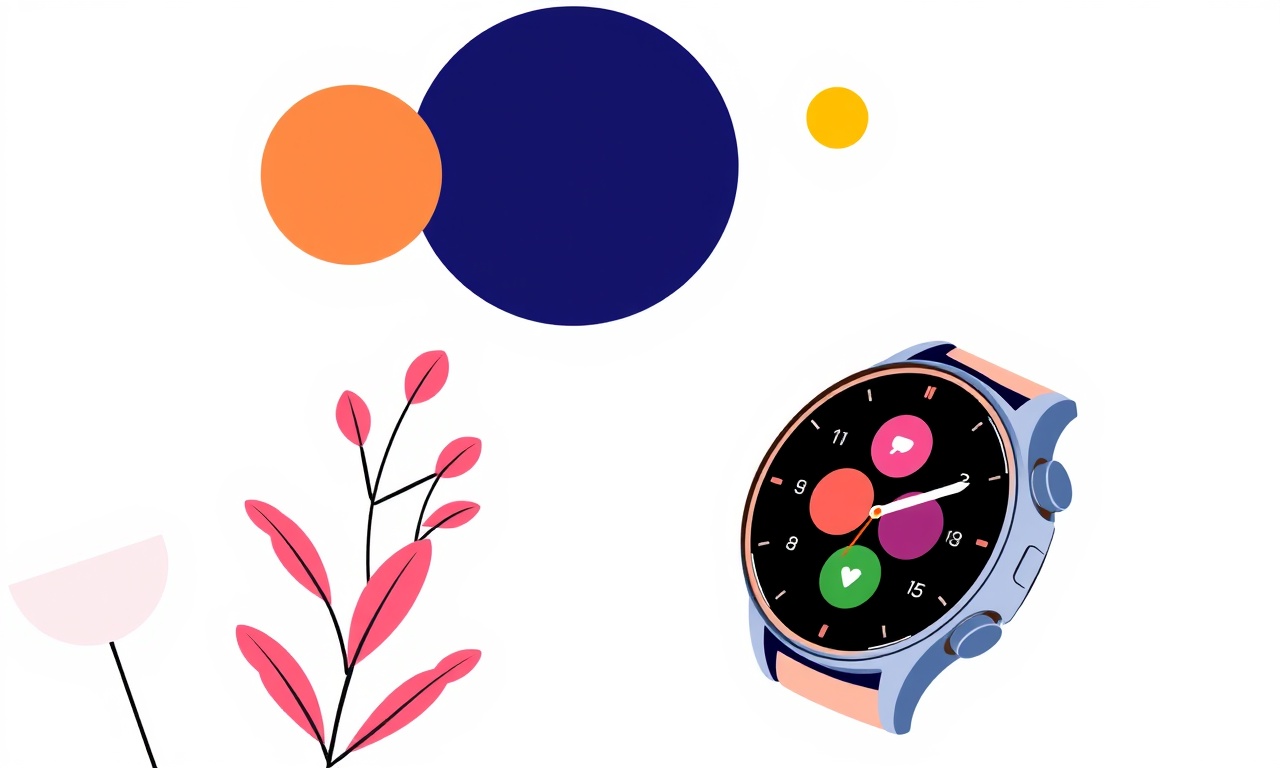
Understanding Firmware Update Errors on Samsung Galaxy Watch Active 2
Firmware updates are essential for keeping your Samsung Galaxy Watch Active 2 secure, adding new features, and improving performance. However, when an update fails, it can leave the watch in a frustrating state—stuck on a loading screen, unresponsive, or displaying an error code. This guide walks you through common error scenarios, why they happen, and step‑by‑step solutions that restore your watch to full functionality.
Common Causes of Firmware Update Failures
| Error Situation | Typical Symptoms | Likely Cause |
|---|---|---|
| “No internet connection” | Error message on the watch or phone app | Phone’s Wi‑Fi or cellular data disabled; watch paired to a different network |
| “Insufficient battery” | Watch refuses to update, or updates start then stop | Battery level below 30 % or 50 % (varies by firmware) |
| “Connection lost” | Bluetooth disconnects during update | Interference, low signal strength, or phone in Do‑Not‑Disturb mode |
| “Invalid file” | Update fails with a generic error | Corrupted firmware file or outdated Galaxy Wearable app |
| “Device not supported” | Error appears on phone before download | Using a non‑Samsung device or an incompatible OS version |
| “Watch unresponsive” | Watch displays a black screen or keeps cycling through “Preparing to update” | Watch firmware corrupted during a prior failed attempt |
Knowing which symptom matches your situation helps narrow the troubleshooting path quickly.
Prerequisites Before You Start
- Keep the Phone and Watch on the Same Wi‑Fi Network – The Galaxy Wearable app downloads the update to the phone, then pushes it to the watch over Bluetooth. If the phone switches to a different network mid‑process, the transfer stops.
- Make Sure the Phone’s Battery Is Above 50 % – A low battery can trigger an abrupt shutdown during download or push, causing corruption.
- Unlock the Watch During the Update – Some updates require the screen to remain active and unlocked. Put the watch in “Do Not Disturb” mode if you need to leave it unattended.
- Close Other Battery‑Intensive Apps on the Phone – Free up RAM and CPU so the Galaxy Wearable app can run smoothly.
- Ensure the Phone’s Operating System Is Compatible – Watch Active 2 works best with Android 7.0 or newer, iOS 10 or newer. Check the phone’s version under Settings > About phone.
If you’ve met these conditions, you’re ready to dive into the troubleshooting steps.
Step‑by‑Step Troubleshooting
1. Verify the Battery Level
The most common cause of update failure is a low battery.
- Check the watch: Swipe down from the top of the screen to view the battery icon.
- Charge the watch: Use the original charger or a compatible charging dock until the battery reaches at least 50 %.
- Verify the phone’s battery: Make sure it is above 30 % before you start the download.
Charging both devices fully reduces the risk of sudden shutdowns that corrupt the update file.
2. Confirm a Stable Phone‑Watch Connection
Firmware updates rely on a strong Bluetooth link.
- Re‑pair the devices: Go to Settings > Connections > Bluetooth on both devices. Forget the Galaxy Watch from the phone’s list, then reconnect.
- Move closer: Reduce physical obstacles between the phone and watch.
- Disable power‑saving modes: On Android, disable “Battery Saver” or “Adaptive Battery” while updating.
- Turn off Wi‑Fi during the push: Some users report smoother updates when Wi‑Fi is disabled on the phone and the update is pushed over the local Bluetooth connection.
3. Update the Galaxy Wearable App
An outdated app can misinterpret the firmware package.
- Open the Galaxy Wearable app on your phone.
- Check for app updates: In the top right corner, tap the menu icon and select “Check for updates.”
- Install any available updates before attempting the watch firmware update again.
If the app is already the latest version and the issue persists, proceed to the next step.
4. Clear Cache and Storage on the Phone
Residual files can block the new update from being stored.
- Go to Settings > Apps > Galaxy Wearable.
- Tap Storage and then “Clear Cache.”
- If needed, tap “Clear Data” (note that this will reset the app’s preferences).
- Restart the phone and re‑open Galaxy Wearable.
After the cleanup, attempt to download the firmware again.
5. Manually Delete Old Firmware Packages
Sometimes a corrupted download file sits in the device’s storage.
- Open a file manager app on your phone.
- Navigate to the “Download” folder and look for files named something like “Galaxy_Watch_Active_2_FW_…zip.”
- Delete any files older than the last month.
- Restart the Galaxy Wearable app and try the update again.
6. Use the “Download Update” Feature Inside the App
If the automatic update prompt does not appear:
- Open Galaxy Wearable.
- Tap “Watch information” or “Software update” (the wording may vary).
- Select “Download” and let the app fetch the latest firmware.
- Once downloaded, tap “Install” to begin the push to the watch.
If the install step fails again, proceed to a more invasive reset.
7. Perform a Soft Reset of the Watch
A soft reset can clear temporary glitches.
- Press and hold the left button (the button on the left side of the watch) for about 10 seconds.
- Release when the screen turns off and the watch restarts.
- Re‑pair with the phone and try the update once more.
8. Factory Reset the Watch (Last Resort)
If all else fails, a factory reset may be necessary.
Warning: This erases all data from the watch, including workouts, heart‑rate history, and custom watch faces. Back up important data if possible.
How to reset:
- Open Galaxy Wearable on the phone.
- Go to Watch information > Reset.
- Confirm the reset.
- After the watch reboots to the initial setup screen, pair it again with the phone and check for firmware updates.
9. Try Updating via Samsung Smart Switch
For advanced users, Samsung Smart Switch can push updates over a USB cable.
- Install Smart Switch on your PC or Mac.
- Connect your phone via USB and open Smart Switch.
- Select “Updates” and let Smart Switch download the watch firmware.
- Connect the watch to the phone via Bluetooth and push the update from the app.
This method bypasses potential Wi‑Fi or Bluetooth limitations on the phone itself.
10. Contact Samsung Support or Visit a Service Center
If you’ve exhausted every troubleshooting step and still cannot update, Samsung’s technical support can assist.
- Phone Support: Call the Samsung Care line in your country.
- Online Chat: Visit Samsung’s support portal and chat with a representative.
- Authorized Service Center: Bring the watch to a Samsung authorized repair shop for a professional diagnosis.
Common Error Codes Explained
| Error Code | What It Means | Quick Fix |
|---|---|---|
| Update failed due to insufficient storage | The watch’s internal memory lacks space for the firmware file. | Delete unused watch faces or apps, then retry. |
| Bluetooth not detected | The watch cannot establish a link to the phone. | Re‑pair devices and move closer. |
| Firmware file corrupt | The downloaded package is damaged. | Re‑download the firmware via Galaxy Wearable. |
| Connection timeout | The phone lost contact with the internet during download. | Connect to a more stable Wi‑Fi network. |
Keeping a reference of these codes can speed up troubleshooting.
Preventing Future Update Issues
- Schedule Updates During Charging – Keep the watch on its charger when you start the update to ensure uninterrupted power.
- Avoid Multitasking on the Phone – Close other apps, especially those that use heavy data or battery, during the update.
- Use a Reliable Wi‑Fi Network – A stable connection prevents download errors.
- Maintain Device Software – Regularly update your phone’s OS and the Galaxy Wearable app.
- Check Battery Health – Over time, battery capacity decreases; if you notice frequent low‑battery warnings, consider a battery replacement.
Frequently Asked Questions
Q: Why does my watch freeze on “Preparing to update” for hours?
A: This usually indicates a weak Bluetooth connection or a corrupted firmware file. Restart both devices, re‑pair them, and clear cache before retrying.
Q: Can I manually download the firmware file from Samsung’s website?
A: Samsung does not provide direct firmware downloads for the Galaxy Watch Active 2. All updates must go through the Galaxy Wearable app or Smart Switch.
Q: What if the watch shows a “Connection lost” message during the update?
A: Move the watch closer to the phone, ensure no other devices interfere with the Bluetooth channel, and avoid using the phone’s battery saver modes.
Q: Will a factory reset delete my workout data?
A: Yes, a factory reset removes all local data. If you have a Samsung account synced with your watch, some data may be recoverable after re‑pairing.
Q: Is it safe to use a third‑party charging cable?
A: It is safest to use the original charger. Third‑party cables may not provide consistent power, leading to abrupt shutdowns during updates.
Final Thoughts
Firmware updates are a routine part of maintaining the health and performance of your Galaxy Watch Active 2. While errors can feel discouraging, most can be resolved with a systematic approach. By ensuring a stable connection, a healthy battery, and a clean software environment, you can avoid the most common pitfalls. If problems persist, a factory reset or professional support are reliable last steps.
Remember: the watch’s firmware is just one piece of its ecosystem. Keeping both the watch and its companion phone updated, and treating the devices with care, will extend their life and keep your experience smooth and reliable.
Discussion (10)
Join the Discussion
Your comment has been submitted for moderation.
Random Posts
Solving a Persistent Stain Release Issue on Whirlpool WFW5620HW
Tired of spots on your clothes? Discover how to diagnose and fix the stubborn stain release problem on your Whirlpool WFW5620HW with our step-by-step guide.
9 months ago
De'Longhi DL150 Steam Iron Water Recirculation Failure Solution
Trouble with your DeLonghi DL150 steam iron? Learn why water recirculation fails, diagnose the issue, and follow our simple step by step solution to restore steady steam and wrinkle free clothes.
3 months ago
Resolving Lenovo Mirage Solo Bluetooth Pairing Issues
Fix Lenovo Mirage Solo Bluetooth glitches fast with this step by step guide. From simple checks to firmware hacks, reconnect your headset, controllers, and peripherals in minutes.
2 months ago
Lenovo SmartEyewear X Eye Tracking Error Troubleshoot
Get your Lenovo SmartEyewear X eye tracking back with our step-by-step guide. Diagnose glitches, reset settings, and restore smooth gaze navigation quickly.
3 months ago

Calibrating Noise‑Cancellation on Beats Studio Buds
Master Beats Studio Buds ANC: learn the science, step, by, step calibration, and troubleshooting to silence distractions and boost your listening experience.
10 months ago
Latest Posts

Fixing the Eufy RoboVac 15C Battery Drain Post Firmware Update
Fix the Eufy RoboVac 15C battery drain after firmware update with our quick guide: understand the changes, identify the cause, and follow step by step fixes to restore full runtime.
5 days ago

Solve Reolink Argus 3 Battery Drain When Using PIR Motion Sensor
Learn why the Argus 3 battery drains fast with the PIR sensor on and follow simple steps to fix it, extend runtime, and keep your camera ready without sacrificing motion detection.
5 days ago

Resolving Sound Distortion on Beats Studio3 Wireless Headphones
Learn how to pinpoint and fix common distortion in Beats Studio3 headphones from source issues to Bluetooth glitches so you can enjoy clear audio again.
6 days ago