How to Rebuild Apple iPhone 13 Pro Battery Calibration After Extended Fast Charging
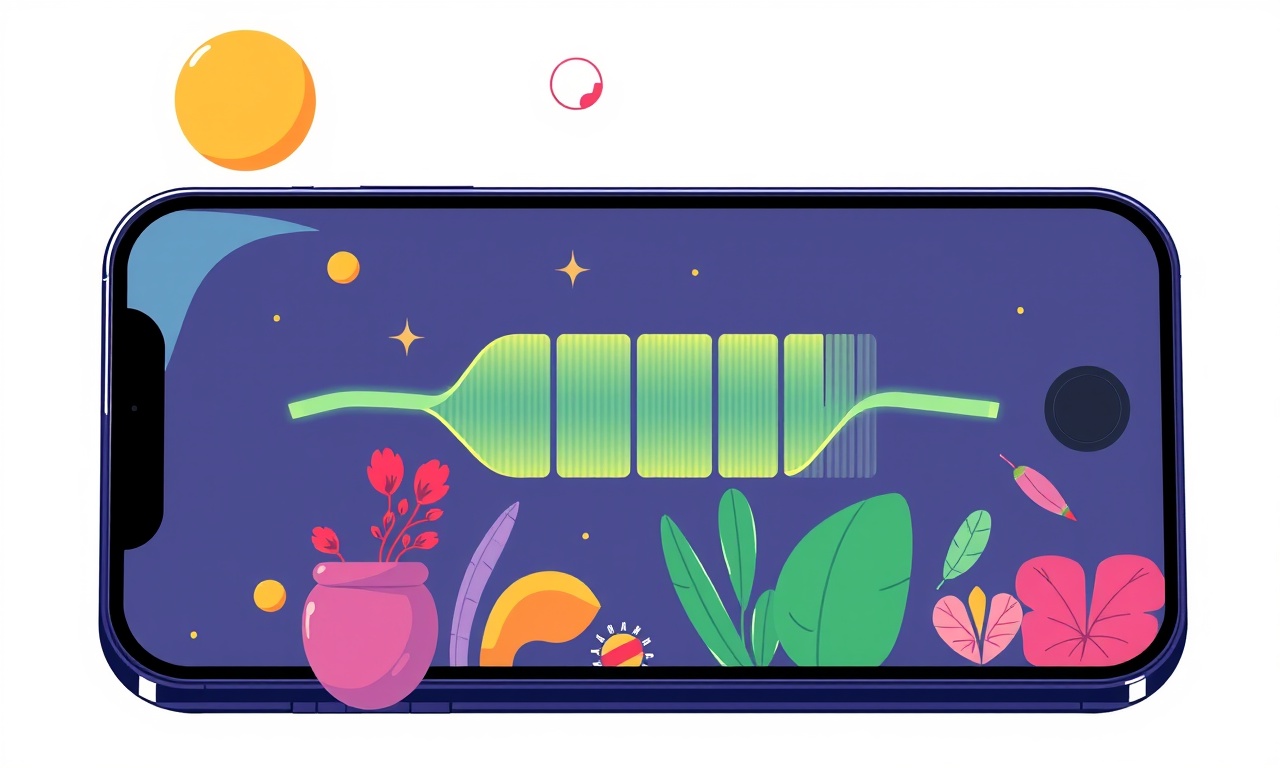
When a fast charger runs a battery for an extended period, the phone’s internal calibration can shift. This shift shows up as inaccurate battery percentages, sudden drops, or a sluggish charge curve. Re‑calibrating the battery on an iPhone 13 Pro restores the accuracy of the on‑screen percentage and helps you manage your power usage more effectively.
Below is a step‑by‑step guide that explains why calibration matters, what signals that it’s needed, and how to perform a clean calibration on an iPhone 13 Pro that has been subject to prolonged fast charging. The instructions assume you’re using iOS 17 or later, but the same process applies to earlier releases with minor UI differences.
Why Fast Charging Affects Calibration
Fast charging pushes a battery to higher currents and temperatures more quickly than regular charging. While this is convenient, it also stresses the cell chemistry:
- Voltage spikes can temporarily skew the internal voltage‑to‑capacity mapping that iOS uses to display battery percentages.
- Temperature rise can trigger protective throttling, causing the battery to hold a lower charge than it physically contains.
- Rapid charge cycles may bypass the slow, low‑current “topping‑off” period that the battery’s algorithm uses to finalize the charge level.
When these factors combine, iOS may keep a “memory” of the last known accurate level that no longer matches reality. The result is a misrepresented battery icon and a false sense of how long the phone will last.
Signs That Calibration Is Needed
- Sudden drop in percentage after a full charge – e.g., the phone charges to 100 % but drops to 70 % within an hour of use.
- Battery icon stays stuck at 100 % even when the phone is unplugged for a while.
- Frequent sudden shutdowns when the display shows a relatively high percentage.
- Charging time inconsistencies – it takes longer than expected to reach 100 %, or the phone charges very quickly then stalls.
- Battery Health screen reports low maximum capacity even though the phone has been used normally.
If any of these symptoms appear, it’s a good idea to perform a calibration.
Preparatory Steps
Before starting, make sure:
- Your iPhone 13 Pro is running the latest iOS version. Calibration routines are most reliable on newer firmware.
- You have a reliable charger: use Apple’s 20 W USB‑C power adapter or a certified equivalent. Avoid low‑quality fast chargers that may deliver irregular currents.
- Your phone has enough battery life to complete the process – you should be able to charge it to 100 % from at least 20 % without interruption.
If you’re unsure whether your charger is safe, plug it into a power strip with surge protection and double‑check that the cable is not damaged.
Step 1 – Let the Battery Drain Completely
The first part of the calibration routine requires the battery to reach 0 % under normal usage. Follow these sub‑steps:
- Turn on your phone if it’s off.
- Use your device normally: browse, watch videos, play games, or keep it idle in a low‑power mode.
- Allow the phone to shut down automatically once the battery indicator reaches 0 %.
- Leave the phone off for a few minutes after it shuts down. This ensures the system registers the absolute low state.
If the phone doesn’t shut down automatically, you can manually force a shutdown by pressing and holding the power button until the “slide to power off” slider appears, then slide it. After the phone turns off, wait 5 minutes before proceeding.
Step 2 – Charge to 100 % Without Interruption
Once the battery is fully depleted, it’s time to charge it back to 100 %. The goal is to let the charging process finish naturally.
- Connect your iPhone 13 Pro to the charger immediately after it shuts down.
- Leave it connected and do not unplug it until the screen shows 100 %.
- Avoid using the phone while charging. If you need to use it, keep the screen turned off and use a low‑power app to prevent interrupting the charge curve.
- Keep the phone in a cool environment: elevated temperatures accelerate battery degradation and can skew the calibration data.
- Wait until the charging icon turns green and the percentage reads 100 %. Do not unplug it at 90 % or 95 %; it must reach the full mark.
Step 3 – Let the Battery Rest
After reaching 100 %, give the battery a short rest:
- Unplug the charger only after the battery indicator shows 100 %.
- Leave the phone idle for at least 10 minutes.
- Do not power on the phone immediately after unplugging; give it a moment to stabilize.
This resting period allows the charging circuitry to finish any final adjustments and ensures the battery chemistry returns to equilibrium.
Step 4 – Check the Battery Health Screen
Once the phone is back on, verify that the calibration appears to have taken effect:
- Open Settings > Battery > Battery Health.
- Look at the Maximum Capacity percentage. If it’s increased compared to before, the calibration was successful.
- Observe the current battery indicator as you use the phone. It should now reflect a more accurate level and no longer drop dramatically after a short period.
If the percentage still seems off or the phone’s battery icon behaves erratically, repeat the calibration steps.
Optional – Reset All Settings (If Problems Persist)
If you’ve calibrated the battery and the issue remains, a broader reset may help:
- Settings > General > Transfer or Reset iPhone > Reset > Reset All Settings.
- This action does not erase data, but it will reset network preferences, privacy settings, and other configurations.
- After the reset, perform the calibration routine again.
Common Troubleshooting Tips
| Symptom | Potential Fix |
|---|---|
| Phone still shows 100 % after unplugging | Let the phone sit for 30 minutes; sometimes the system lags behind the actual charge level. |
| Battery drains rapidly after calibration | Check for background apps draining power; enable Low Power Mode. |
| Calibration doesn’t change the displayed percentage | Try using a different charger or cable; sometimes the charging profile is not recognized correctly. |
| Battery Health shows “Critical” even after calibration | The battery may be physically degraded beyond recovery; consider a battery replacement. |
When to Seek Professional Help
If repeated calibrations do not correct the issue, or if the Battery Health screen shows a capacity lower than 80 %, the battery may be physically damaged. In such cases:
- Contact Apple Support: use the Apple website or the Apple Store app to schedule a visit.
- Visit an Apple‑Authorized Service Provider: they can run diagnostics and replace the battery if necessary.
- Back up your data before any service; battery replacement does not affect user data, but it’s always safer to have a copy.
Final Thoughts
Fast charging is a convenience that comes at the cost of accelerated battery wear and temporary calibration drift. By following the steps above, you give your iPhone 13 Pro’s battery an extra dose of precision that can improve the accuracy of the on‑screen percentage and help you manage power consumption better.
Remember that calibration is not a permanent fix for battery degradation. Regularly monitoring Battery Health, keeping the phone cool, and avoiding extreme temperatures will keep your battery’s performance optimal for longer. Use the calibration routine only when you notice noticeable inaccuracies, and you’ll keep your device’s power indicator honest for many months to come.
Discussion (5)
Join the Discussion
Your comment has been submitted for moderation.
Random Posts
Reassessing the Audio Jack Dropout on LG Velvet 2
Explore why the LG Velvet 2's 3.5mm jack glitches, what triggers audio dropouts, user fixes, and LG's stance: essential insight for current and future Android phones.
1 year ago
Philips HP700 Fan Stalls Quietly Even At Low Speed Why This Happens And What To Do
Discover why your Philips HP700 quietly stalls at low speed, spot early signs, and fix the issue to keep steady airflow.
2 weeks ago

How to Stop Sharp LC-40M from Producing Audio Sync Issues While Gaming
Fix your Sharp LC-40M so game audio stays in sync. Learn quick settings tweaks, cable checks, and audio-output fixes that keep sound matching action for a flawless gaming experience.
6 months ago

Solve Arlo Pro 4 Wireless Connection Problems
Discover quick fixes for offline Arlo Pro 4 cameras. Check power, Wi, Fi, firmware, reset steps, and more get your live feed back up fast.
4 months ago
Panasonic D45 Dryer Timer Skips Final Drying Cycle
Discover why your Panasonic D45 dryer skips its final cycle, learn the symptoms, root causes, and easy fixes to keep clothes dry, save energy, and avoid extra runs.
5 months ago
Latest Posts

Fixing the Eufy RoboVac 15C Battery Drain Post Firmware Update
Fix the Eufy RoboVac 15C battery drain after firmware update with our quick guide: understand the changes, identify the cause, and follow step by step fixes to restore full runtime.
5 days ago

Solve Reolink Argus 3 Battery Drain When Using PIR Motion Sensor
Learn why the Argus 3 battery drains fast with the PIR sensor on and follow simple steps to fix it, extend runtime, and keep your camera ready without sacrificing motion detection.
5 days ago

Resolving Sound Distortion on Beats Studio3 Wireless Headphones
Learn how to pinpoint and fix common distortion in Beats Studio3 headphones from source issues to Bluetooth glitches so you can enjoy clear audio again.
6 days ago